Webmall
The Webmall is SilkPanel's built-in item shop. Players can browse categories, pick a character, and purchase items directly from the browser — paid with Silk, Premium Silk, or in-game Gold. The admin panel gives you full control over categories, items, stock, pricing, and availability schedules.
Overview
Key capabilities at a glance:
- Multi-currency — Silk (own / gift / point), ISRO Silk & Premium Silk, and in-game Gold
- Scheduled availability — open/close categories by date range and recurring weekdays
- Stock limits — cap how many times an item can be sold across all players
- HOT badges — highlight featured items
- SOX detection — automatically shows the seal type (Star, Nova, …) on item cards
- Gender tags — displays ♂ / ♀ requirement badges for equipment
- Template support — frontend renders through the active template (
gilded-pathships out of the box) - Purchase log — every transaction is recorded with user, character, item, price type, and amount
- Custom Items — trigger any MSSQL stored procedure on purchase instead of delivering a game item
Admin Panel
Categories
Navigate to Webmall → Categories in the sidebar.
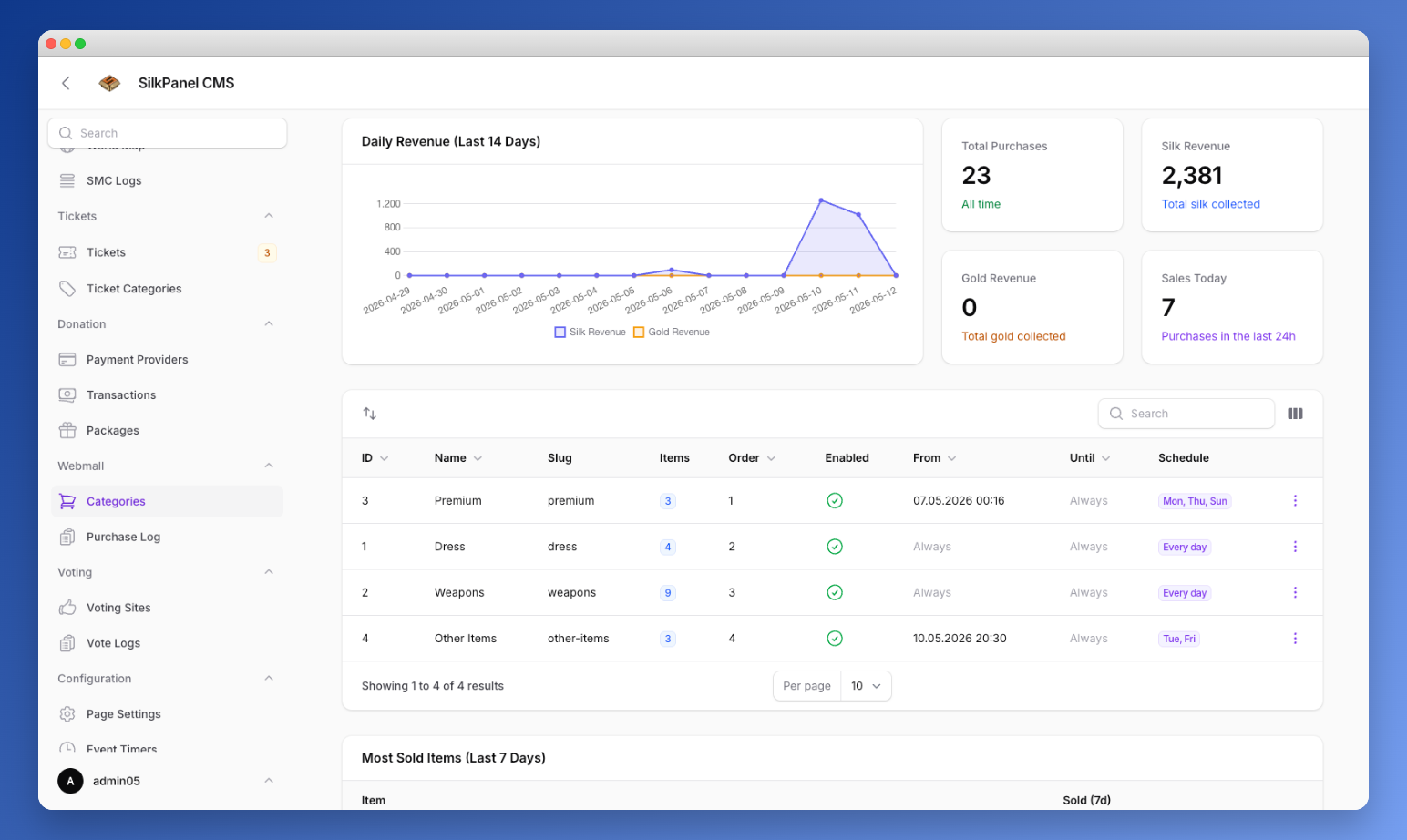
| Column | Description |
|---|---|
| Name | Display name shown to players |
| Slug | URL-safe identifier, auto-generated from the name |
| Items | Number of active items in this category |
| Order | Display order (drag to reorder) |
| Enabled | Toggles the category on/off |
| From / Until | Optional date window — leave blank to always show |
| Schedule | Recurring weekday filter |
Creating a Category
Click New Category and fill in the form.
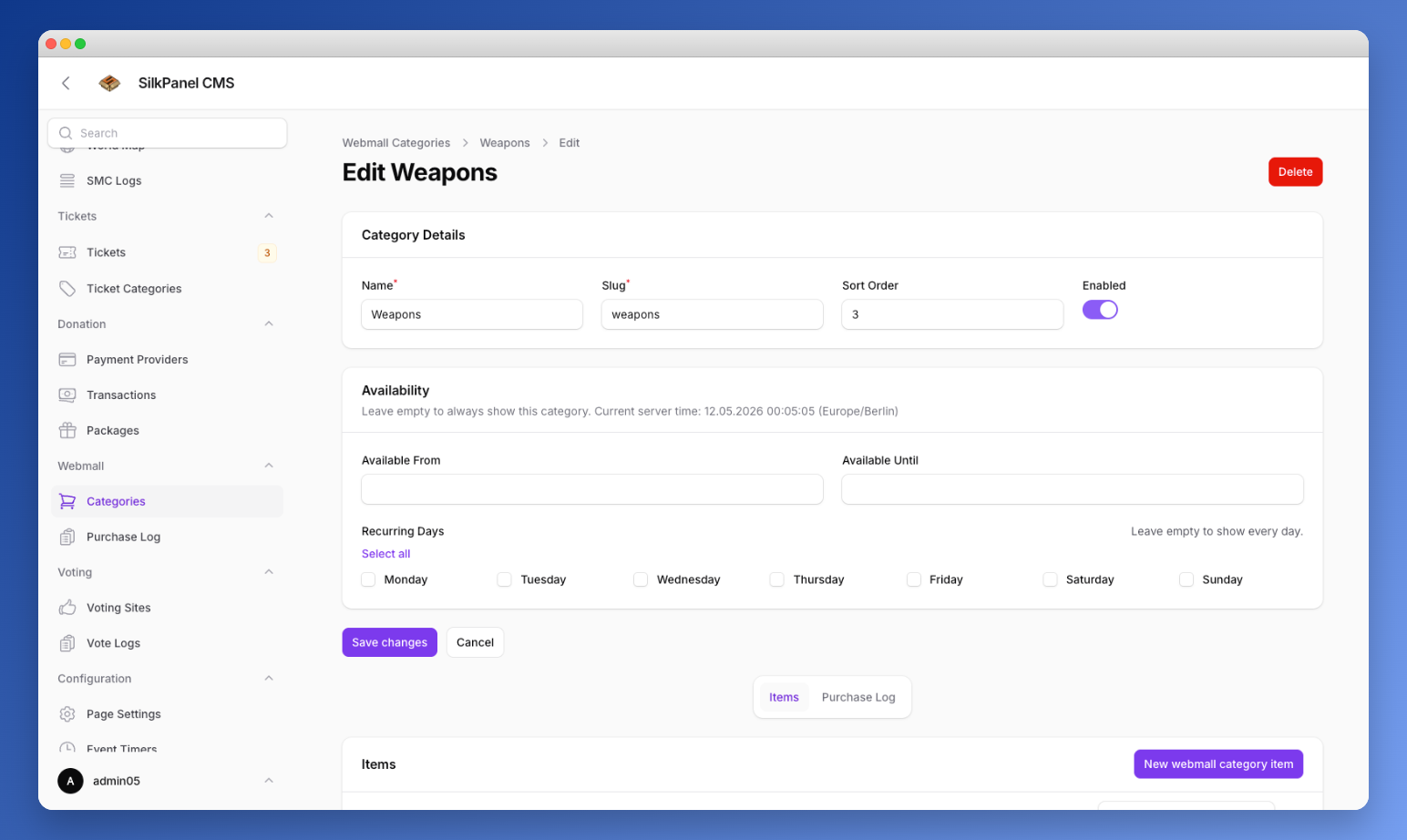
Category Details
- Name — The name shown in the tab bar on the frontend.
- Slug — Auto-filled. Used in the URL and internally. Read-only after generation.
- Sort Order — Lower numbers appear first. You can also drag rows in the table to reorder.
- Enabled — Uncheck to hide the category without deleting it.
Availability
- Available From / Until — Set a date/time window. Leave both blank for permanent visibility.
- Recurring Days — Restrict the category to specific weekdays (e.g. only show on weekends). Leave all unchecked to show every day.
TIP
The current server time is shown below the section header so you can set dates without timezone confusion.
Items
Open a category and scroll to the Items relation. Click Add Item.
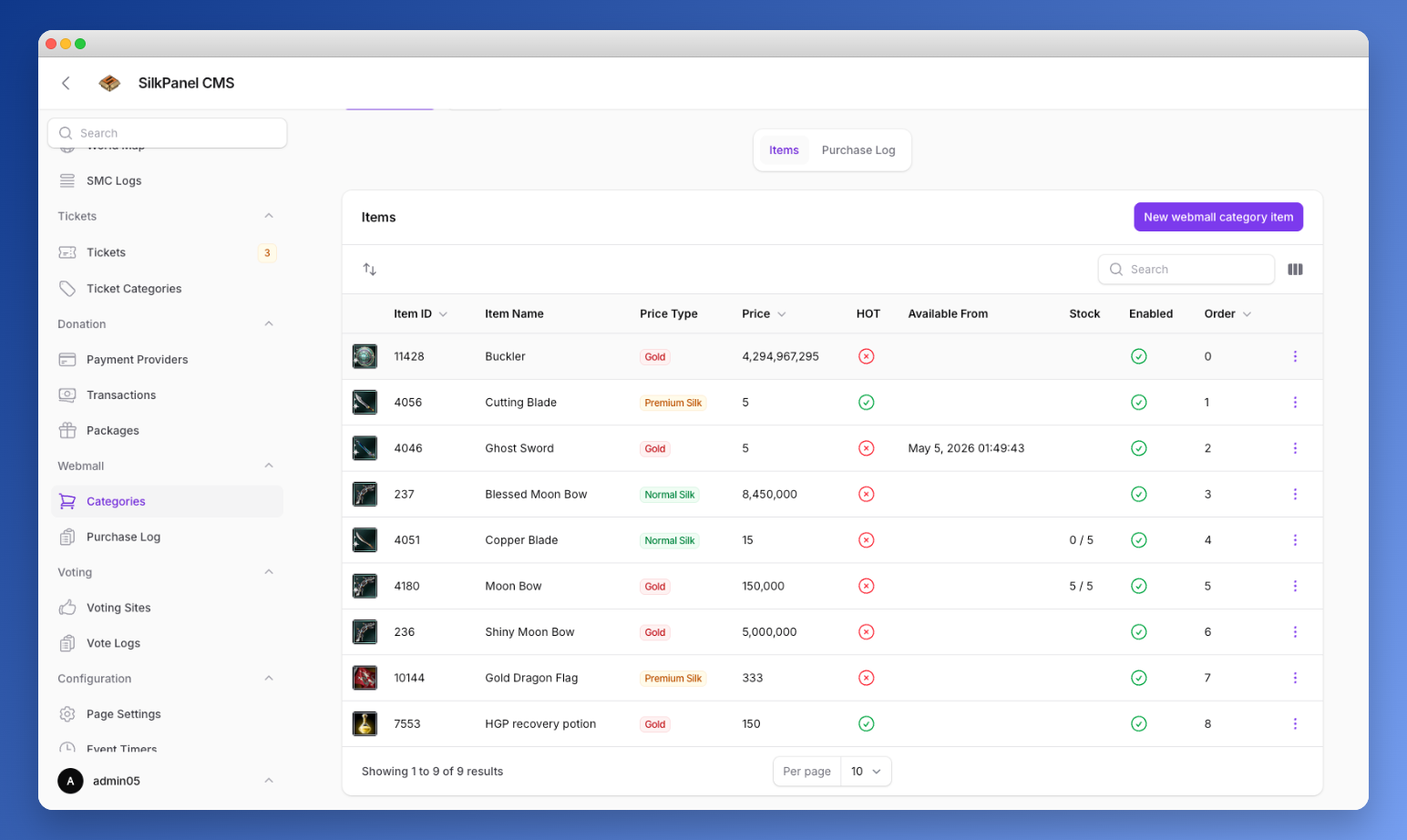
Item Form
Item selection
Search by CodeName128. The dropdown shows the human-readable item name alongside the code name. Selecting an item auto-fills the display name snapshot and loads the item info panel.
Item Info panel (read-only, shown after selecting an item)
| Field | Source |
|---|---|
| Req. Level | _RefObjCommon.ReqLevel1 |
| NPC Price | _RefObjCommon.Price |
| Sell Price | _RefObjCommon.SellPrice |
| Repair Cost | _RefObjCommon.CostRepair |
| Tradeable / Can Sell / Can Buy | _RefObjCommon flags |
| Max Stack | _RefObjItem.MaxStack |
Pricing
| Field | Description |
|---|---|
| Price Type | Silk own / gift / point · ISRO Normal / Premium · Gold |
| Price | Amount to charge. Maximum value: 4,294,967,295 |
Item Type
Every item has an Item Type toggle at the top of the form:
| Type | Description |
|---|---|
| Regular Item | Standard game item delivered to the character's inventory (default). |
| Custom Item | Executes a custom MSSQL stored procedure instead of delivering a game item. |
Depending on the selected type the form adapts — fields that are not relevant are hidden automatically.
Other settings
| Field | Description |
|---|---|
| Display Name | Auto-filled snapshot of the item name. Editable — changing the game item name later won't break this. |
| Sort Order | Position within the category. |
| Stock Limit | Leave empty for unlimited. Once sold reaches this number the item shows as Sold out. |
| Available From / Until | Optional date window for the item itself (independent of category availability). |
| Mark as HOT | Shows a HOT badge on the item card. |
| Enabled | Hides the item without deleting it. |
Custom Items
Custom Items let you sell anything that can be handled by a stored procedure — extra teleports, buff packages, title unlocks, custom currency, etc. No game item is delivered; instead SilkPanel calls a procedure you define.
Admin Form Fields
| Field | Description |
|---|---|
| Custom Item Image | Upload a custom image displayed on the item card in the frontend. |
| Database Connection | Database connection where the procedure lives (e.g. sro_shard, sro_account). |
| Procedure Name | Exact name of the stored procedure to execute. A dropdown lists available procedures once a connection is chosen. |
| Required Procedure Parameters | Read-only preview of the parameters detected in the selected procedure. |
| Optional Custom Parameters | Key-value pairs that are forwarded to the procedure. Use value tokens for dynamic runtime values (see below). |
Value Tokens
In the Optional Custom Parameters value fields you can use the following tokens — they are replaced with live values at purchase time:
| Token | Resolved value |
|---|---|
{user_id} | SilkPanel user ID |
{jid} | VSRO account JID (JID) |
{pjid} | ISRO account PJID (StrUserID) |
{jid_or_pjid} | Automatically picks jid (VSRO) or pjid (ISRO) |
{username} / {account_name} | Silkroad account name |
{charname} | Name of the selected character |
{codename} | Item name snapshot (display name) |
{amount} | Price value |
Purchase Flow for Custom Items
- Player selects the character and confirms the purchase.
- SilkPanel checks the player's balance (same as regular items).
- Payment is deducted.
- The configured stored procedure is executed with the mapped parameters.
- If the procedure succeeds → purchase is logged as completed.
- If the procedure fails → purchase is logged as failed and the player sees an error message. The payment is not automatically refunded — handle rollback logic inside your procedure if needed.
WARNING
Because payment is deducted before the procedure runs, make sure your procedure is idempotent or handles errors internally to avoid charging players for failed actions.
Purchase Log Columns (Custom Items)
The Purchase Log shows two additional columns for custom item purchases:
| Column | Description |
|---|---|
| Status | completed or failed |
| Procedure Error | Error message returned by the procedure (if any) |
Purchase Log
Navigate to Webmall → Purchase Log for a global view of all transactions.
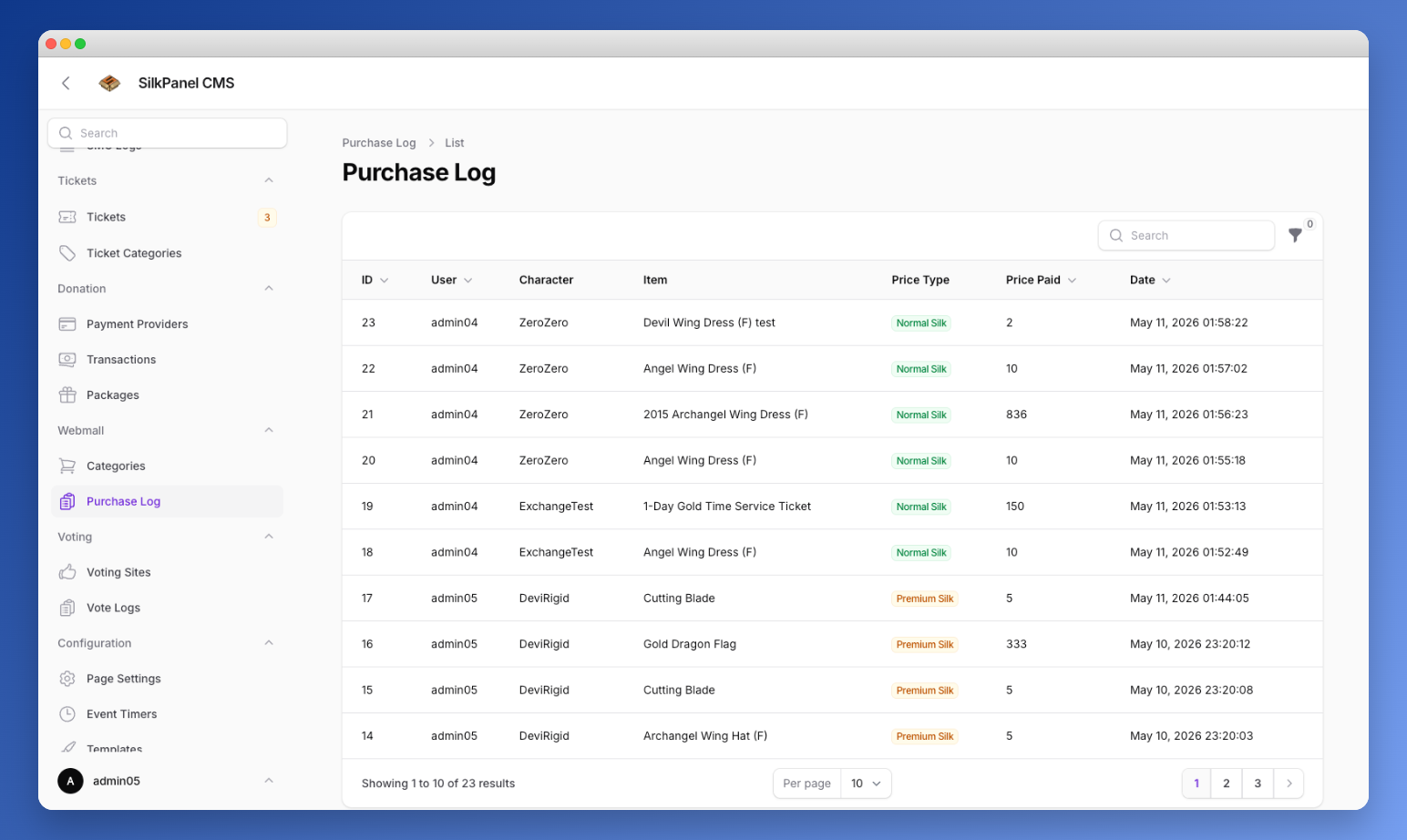
Each row shows:
- User account name
- Character name used for delivery
- Item name (snapshot at time of purchase)
- Price type (color-coded badge)
- Amount paid
- Purchase date/time
You can filter by Price Type and by a date range.
The same log is also accessible per-category (inside the category edit page) and per-user (inside the User resource).
Widgets
The Webmall dashboard widgets appear on the Filament home page.
| Widget | Description |
|---|---|
| Total Purchases | All-time purchase count |
| Silk Revenue | Sum of all non-gold payments |
| Gold Revenue | Sum of all gold payments |
| Sales Today | Purchases made today |
| Daily Revenue Chart | Silk vs Gold revenue over the last 14 days |
Settings
Go to Settings and scroll to the Webmall section.
| Setting | Description |
|---|---|
| Enable Webmall | Shows or hides the webmall route for players entirely |
| Require character to be offline | When enabled, a player must be logged out of the game before they can complete a purchase. Prevents item delivery issues while the character is online. |
WARNING
The Require character to be offline toggle only appears when the Webmall is enabled.
Frontend
Player Flow
- Player opens the Webmall page.
- Selects a character from the character list at the top.
- Browses category tabs and clicks Buy on an item.
- A confirmation modal opens showing:
- Item icon and name
- Price type and amount
- Current balance (for Gold: balance of the selected character)
- Remaining balance after purchase
- Player confirms → item is delivered to the selected character's inventory mail / direct slot.
Item Card Details
Each item card shows:
- Item icon — game item icon (from
AssocFileIcon128) for regular items, or the uploaded custom image for custom items - SOX badge —
Normal/Seal of Star/Seal of Novaetc., derived fromItemClassandCodeName128(regular items only) - Gender badge — ♂ Male / ♀ Female, shown for equipment (TypeID2 = 1, excluding shields and accessories) (regular items only)
- HOT badge — when marked as HOT in the admin
- Stock indicator —
Sold outwhen stock is exhausted - Required level (regular items only)
- Price with silk/gold icon
Balance Display
The modal always shows the balance relevant to the selected price type:
- Silk — reads from the platform silk table (
sk_silk/ JCash) - Gold — reads
RemainGoldfrom_Charfor the character currently selected by the player
INFO
Changing the selected character while the modal is open is not possible — cancel, switch character, then open the modal again.
Offline Requirement
If Require character to be offline is active:
- An amber warning banner appears on the item card buy button area when the selected character is online.
- The Confirm Purchase button is disabled.
- The guard is also enforced server-side in the purchase service — so it cannot be bypassed.
Template System
The Webmall frontend uses the active template namespace (template::). This means you can override any view by placing a file in:
resources/views/templates/{your-template-name}/livewire/webmall.blade.php
resources/views/templates/{your-template-name}/webmall/index.blade.php
If the template file does not exist, SilkPanel falls back to the default views in resources/views/.
The gilded-path template ships with a fully styled Webmall frontend out of the box.
Technical Reference
Models
| Model | Table | Purpose |
|---|---|---|
WebmallCategory | webmall_categories | Category definition with availability rules |
WebmallCategoryItem | webmall_category_items | Items assigned to a category with pricing |
WebmallPurchase | webmall_purchases | Transaction log |
Services
WebmallPurchaseService
Handles the full purchase flow. The path differs by item type:
Regular Item
- Validates item availability
- Checks the player's balance for the correct character/account
- Deducts payment (Silk via
SilkHelper::addSilk· Gold via_Char.RemainGoldon the selected character) - Delivers the item via
SilkroadItemService - Increments the
soldcounter - Writes a
WebmallPurchaselog entry withstatus = completed
If delivery fails, the transaction is rolled back — the player is not charged.
Custom Item
- Validates item availability
- Checks the player's balance
- Deducts payment and writes a
WebmallPurchaselog entry withstatus = pending(inside a DB transaction) - Resolves value tokens in the configured custom parameters
- Executes the stored procedure via
ProcedureManager::executeDirect - Updates the purchase record:
status = completedon success,status = failedon error
Payment is not automatically reversed on procedure failure — handle rollback logic inside your procedure if needed.
Price Types
| Version | Value | Label |
|---|---|---|
| VSRO | silk_own | Silk |
| VSRO | silk_gift | Gift Silk |
| VSRO | silk_point | Silk Points |
| ISRO | 1 | Silk (Normal) |
| ISRO | 3 | Premium Silk |
| Both | gold | Gold |